Search This Blog

Showing posts with label Weblogic 12c. Show all posts

Friday, 4 March 2016

Heap dump of WebLogic Server using jmap, jhat command utilities

This is extending series of Heap Analysis for WebLogic Server instance. Here is a demonstration of jmap, jhat command utilities usage for collecting heap dump.

jmap --help
Screen shot of jmap help output
jmap command utility help

The jmap live dump

sample jmap live dump
WebLogic server Heap dump
jmap live dump for WebLogic server instance

The jmap command with -histo option

jmap -histo PID

Example execution
jmap histogram generation option
jmap with histo option for a WebLogic server instance

The jhat command utility for analyzing heap dump

 jhat -J-mx1024m demoadmin.bin

This command will launches the web server which will have only the heapdump binary file in readable format. Interestingly you could see the outcome on your browser.


jhat for best heap dump analysis
The jhat command for analysis of Heap dump
 Now the server is listening at 7000 port which is default port which you can also change using -port and value as new port number.

The output of jhat command output on Browser

Note here all the above jmap, jhat, jps commands are executed on JDK1.8 version which don't have perm space.

Friday, 15 January 2016

JMS Distributed Topic

To understand the JMS Concepts in detail we have every concept one experiment that will gives more clarity on each. So here it is about one of the JMS destination type that is 'Distributed Topic'.

Prerequisites
  1. WebLogic installed
  2. Domain configured
  3. JMS Servers configured and module
Current Configurations we will do the following:
  • New/Existing JMS Module - with appropriate subdeployment ( pinned or distributed)
  • Create New Connection Factory
  • Create New Distributed Topic
JMS Topic on WebLogic Server

TopicSend.java


package jms.test;

import java.io.*;
import java.util.*;
import javax.transaction.*;
import javax.naming.*;
import javax.jms.*;
import javax.rmi.PortableRemoteObject;

public class TopicSend
{
 public final static String JNDI_FACTORY="weblogic.jndi.WLInitialContextFactory";
 public final static String JMS_FACTORY="TestCF";
 public final static String TOPIC="TestTopic1";

 protected TopicConnectionFactory tconFactory;
 protected TopicConnection tcon;
 protected TopicSession tsession;
 protected TopicPublisher tpublisher;
 protected Topic topic;
 protected TextMessage msg;

 public void init(Context ctx, String topicName) throws NamingException, JMSException
 {
  tconFactory = (TopicConnectionFactory) PortableRemoteObject.narrow(ctx.lookup(JMS_FACTORY),TopicConnectionFactory.class);
  tcon = tconFactory.createTopicConnection();
  tsession = tcon.createTopicSession(false, Session.AUTO_ACKNOWLEDGE);
  topic = (Topic) PortableRemoteObject.narrow(ctx.lookup(topicName), Topic.class);
  tpublisher = tsession.createPublisher(topic);
  msg = tsession.createTextMessage();
  tcon.start();
 }

 public void send(String message) throws JMSException {
  msg.setText(message);
  tpublisher.publish(msg);
 }

 public void close() throws JMSException {
  tpublisher.close();
  tsession.close();
  tcon.close();
 }

 public static void main(String[] args) throws Exception {
  if (args.length != 1) {
  System.out.println("Usage: java  TopicSend WebLogicURL");
  return;
  }
  InitialContext ic = getInitialContext(args[0]);
  TopicSend ts = new TopicSend();
  ts.init(ic, TOPIC);
  readAndSend(ts);
  ts.close();
 }
 protected static void readAndSend(TopicSend ts)throws IOException, JMSException
 {
  BufferedReader msgStream = new BufferedReader (new InputStreamReader(System.in));
  String line=null;
  System.out.print("\n\t TopicSender Started ... Enter message (\"quit\" to quit): \n");
  do {
  System.out.print("Topic Sender Says > ");
  line = msgStream.readLine();
  if (line != null && line.trim().length() != 0) {
  ts.send(line);
  }
  } while (line != null && ! line.equalsIgnoreCase("quit"));
 }

 protected static InitialContext getInitialContext(String url)
 throws NamingException
 {
  Hashtable env = new Hashtable();
  env.put(Context.INITIAL_CONTEXT_FACTORY, JNDI_FACTORY);
  env.put(Context.PROVIDER_URL, url);
  env.put("weblogic.jndi.createIntermediateContexts", "true");
  return new InitialContext(env);
 }
}


TopicReceive.java


package jms.test;

import java.io.*;
import java.util.*;
import javax.transaction.*;
import javax.naming.*;
import javax.jms.*;
import javax.rmi.PortableRemoteObject;
public class TopicReceive implements MessageListener 
 {
 public final static String JNDI_FACTORY="weblogic.jndi.WLInitialContextFactory";
 public final static String JMS_FACTORY="TestCF";
 public final static String TOPIC="TestTopic1";
 private TopicConnectionFactory tconFactory;
 private TopicConnection tcon;
 private TopicSession tsession;
 private TopicSubscriber tsubscriber;
 private Topic topic;
 private boolean quit = false;

 public void onMessage(Message msg)
{
try {
String msgText;
if (msg instanceof TextMessage) {
msgText = ((TextMessage)msg).getText();
} else {
msgText = msg.toString();
}
System.out.println("JMS Message Received: "+ msgText );
if (msgText.equalsIgnoreCase("quit")) {
synchronized(this) {
quit = true;
this.notifyAll();
}
}
} catch (JMSException jmse) {
System.err.println("An exception occurred: "+jmse.getMessage());
}
}

public void init(Context ctx, String topicName)throws NamingException, JMSException
{
tconFactory = (TopicConnectionFactory)PortableRemoteObject.narrow(ctx.lookup(JMS_FACTORY), TopicConnectionFactory.class);
tcon = tconFactory.createTopicConnection();
tsession = tcon.createTopicSession(false, Session.AUTO_ACKNOWLEDGE);
topic = (Topic) PortableRemoteObject.narrow(ctx.lookup(topicName), Topic.class);
tsubscriber = tsession.createSubscriber(topic);
tsubscriber.setMessageListener(this);
tcon.start();
}

public void close() throws JMSException {
tsubscriber.close();
tsession.close();
tcon.close();
}

public static void main(String[] args) throws Exception {
if (args.length != 1) {
System.out.println("Usage:topic.TopicReceive WebLogicURL");
return;
}
InitialContext ic = getInitialContext(args[0]);
TopicReceive tr = new TopicReceive();
tr.init(ic, TOPIC);
System.out.println("JMS Ready To Receive Messages (To quit, send a \"quit\" message).");
synchronized(tr) {
while (! tr.quit) {
try {
tr.wait();
} catch (InterruptedException ie) {}
}
}
tr.close();
}

private static InitialContext getInitialContext(String url) throws NamingException
{
Hashtable env = new Hashtable();
env.put(Context.INITIAL_CONTEXT_FACTORY, JNDI_FACTORY);
env.put(Context.PROVIDER_URL, url);
env.put("weblogic.jndi.createIntermediateContexts", "true");
return new InitialContext(env);
}
}


Output

Troubleshooting JMS Topic JNDI missing


vagrant@precise64:/vagrant$ java jms.test.TopicSend t3://192.168.33.100:7011,192.168.33.100:7012
Exception in thread "main" javax.naming.NameNotFoundException: Unable to resolve 'TestCF'. Resolved '' [Root exception is javax.naming.NameNotFoundException: Unable to resolve 'TestCF'. Resolved '']; remaining name 'TestCF'
        at weblogic.rjvm.ResponseImpl.unmarshalReturn(ResponseImpl.java:237)
        at weblogic.rmi.cluster.ClusterableRemoteRef.invoke(ClusterableRemoteRef.java:348)
        at weblogic.rmi.cluster.ClusterableRemoteRef.invoke(ClusterableRemoteRef.java:259)
        at weblogic.jndi.internal.ServerNamingNode_1036_WLStub.lookup(Unknown Source)
        at weblogic.jndi.internal.WLContextImpl.lookup(WLContextImpl.java:424)
        at weblogic.jndi.internal.WLContextImpl.lookup(WLContextImpl.java:412)
        at javax.naming.InitialContext.lookup(InitialContext.java:417)
        at jms.test.TopicSend.init(TopicSend.java:25)
        at jms.test.TopicSend.main(TopicSend.java:52)
Caused by: javax.naming.NameNotFoundException: Unable to resolve 'TestCF'. Resolved ''
        at weblogic.jndi.internal.BasicNamingNode.newNameNotFoundException(BasicNamingNode.java:1139)


Fix: Restart entire Weblogic server, if JNDI Tree doesn't show's TestCF


Friday, 10 April 2015

01.a. Installation of WebLogic Server 12c on Unix and Linux platforms


The beginning of the WebLogic Administration practical work with installation of WebLogic software. Before you began, you must aware per-requisites for installation and also how you can proceed for the installation.  This blog post is specially for newbies who just began learning WebLogic.

Determining supported configurations for WebLogic Server


Software requirements
There are many Java vendors according to your platform you need to select specific Java. every WebLogic release version is publishing a certificate matrix which will tell you what platform versions it support and which JDK version you need to use for WebLogic installation.
  • Sun/Oracle HotSpot JDK
  • Oracle JRockit
  • IBM JVM
  • HP JDK
Example Certificate Matrix Reference
WebLogic 12.1.3 certificate matrix

Hardware Requirements
  • 512 MB RAM
  • 20 GB HDD
  • CPU 300 MHz
  • i3 or above processors Amd

Installation modes

WebLogic server 12c can be installed in two ways
  • Silent mode installation
  • GUI mode installation

WebLogic 12.1.3 silent mode installation on Ubuntu

1. What is silent mode installation? And why?
This is the initial setup required to learn WebLogic Administrator. If you unable to do silently you are unfit for the production environment setup. Silent-mode installation allows us to define an installation configuration only once and then use the configuration to duplicate the installation on many machines. During installation in silent mode, the installation program reads the inputs for desired settings up configuration from an silent response file that you must prepare before beginning the installation. The installation program does not display any configuration options during the installation process. Silent-mode installation works on both Windows and Linux and UNIX systems also.

WebLogic 12c silent mode installation

Major Benefits
  • Less time of execution of the installation process 
  • Cloud-ready platforms use this method most often
  • This process can be used in configuration tools such as chef, puppet etc 
  •  Easy to install in multiple machines/Production environments
  •  No need of X11 or Mouse clicks!!
Java Installation
Step 1: JDK installation

You can download JDK from Oracle Technical Network (OTN)  Link
 We have two choices to install JDK on a Linux platform:
1. Common for any Linux platform: tar.gz file
tar -zxvf /u01/app/software/jdk*.gz


2. To install WebLogic Server in silent mode installation first we have to install JDK in the Ubuntu.The alternative in the Ubuntu box as follows:
  1. sudo add-apt-repository ppa:webupd8team/java
  2. sudo apt-get update
  3. sudo apt-get install oracle-java7-installer
Step 2: Setup the Environment variables in file called .bash_profile, assume that your login shell is bash. Modify the JAVA_HOME, MW_HOME according to your installations.

export JAVA_HOME=/usr/lib/jvm/java-7-oracle
export PATH=$PATH:$JAVA_HOME/bin
export MW_HOME=/u01/app/oracle/fmw/oraclehome
export WL_HOME=$MW_HOME/wlserver
export CLASSPATH=$WL_HOME/server/lib/weblogic.jar:.

alias wlst="$MW_HOME/oracle_common/common/bin/wlst.sh"
Step 3:Download WebLogic server 12.1.3 Generic file from download link.

Steps involved in silent mode installation

Step 4: Create a directory “silent” and copy the wls.jar file to this directory. mkdir silent
Step 5: Go to the silent directory by using cd silent/
Step 6: Create a file oraInst.loc file in silent directory as follows as: vi oraInst.loc And insert inventory location and installation group as follow as
Inventory_loc=/u01/app/oracle/silent/oraInventory/
Inst_group=oinstall
Step 7: Create a response file and insert below things in the response file
[ENGINE]
Response File Version=1.0.0.0.0
[GENERIC]
ORACLE_HOME=/u01/app/oracle/fmw
INSTALL_TYPE=WebLogic Server
DECLINE_SECURITY_UPDATES=true
SECURITY_UPDATES_VIA_MYORACLESUPPORT=false

You could edit the ORACLE_HOME as you change versions and also

There could be multiple options for INSTALLATION_TYPE:

  1. WebLogic Server
  2. Coherence
  3. Complete with Examples
  4. Fusion Middleware Infrastructure [Infrastructure domains]
  5. Fusion Middleware Infrastructure with Examples [for Restricted JRF, EM domains]


Step 7: Go to the wls.jar location ie in the silent directory and insert the following command

java -jar /u01/app/software/fmw_12*_wls.jar \
-silent -invPtrLoc /u01/app/oracle/silent/oraInst.loc \
-responseFile /u01/app/oracle/silent/responsefile.rsp


Step 8: Check WebLogic server is installed in mention location or not

Conclusion 


 Easy once you worked on this procedure you can work on SOA, OSB, ADF and any Oracle Fusion Middleware products.
The above work is for 12.1.3 version which is an older version of 12c!

WebLogic 12.2.1.x installation in silent mode

The latest version of 12c is 12.2.1.0.0 lets enjoy the new features of WebLogic on Vagrant box here I have executed the installer without matching the certificate matrix. So two of them are not satisfied

  1. Ubuntu Linux
  2. JDK 1.8.0_51 is expected provided 1.8.0_45 

WHAT IS NOT INCLUDED IN THE QUICK INSTALLER?


- Native JNI libraries for unsupported platforms.
- Samples, non-English console help (can be added by using the WLS supplemental Quick Install)
- Oracle Configuration Manager (OCM) is not included in the Quick installer
- SCA is not included in the Quick Installer
[Source extracted from README.txt file]


To install the Quick installer use the following command:
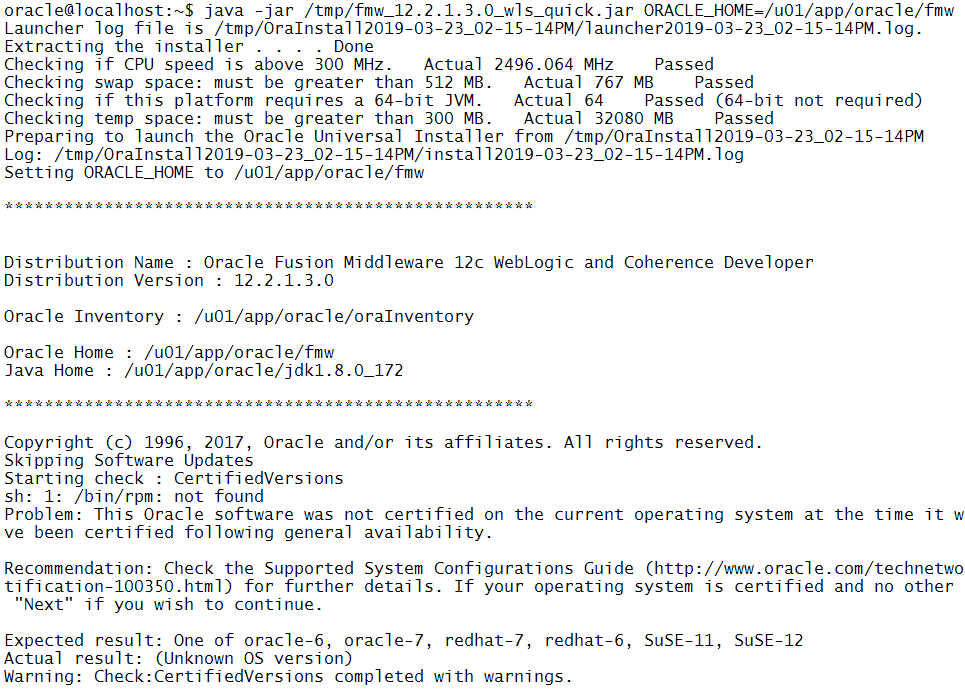
 java -jar fmw_12.2.1.3.0_wls_quick.jar ORACLE_HOME=/u01/app/oracle/fmw

The output of Quick install command:


To install the generic installer use the following command:
oracle@mydev:/u01/app/software$ java -jar fmw_12*_wls.jar -silent -invPtrLoc /home/oracle/silent/oraInst.loc -response /home/oracle/silent/responsefile.rsp
Launcher log file is /tmp/OraInstall2015-10-30_01-30-57AM/launcher2015-10-30_01-30-57AM.log.
Option "-response" is deprecated; use "-responseFile" instead.
Extracting files................................
Starting Oracle Universal Installer

Checking if CPU speed is above 300 MHz.   Actual 2592.418 MHz    Passed
Checking swap space: must be greater than 512 MB.   Actual 767 MB    Passed
Checking if this platform requires a 64-bit JVM.   Actual 64    Passed (64-bit not required)
Checking temp space: must be greater than 300 MB.   Actual 72517 MB    Passed


Preparing to launch the Oracle Universal Installer from /tmp/OraInstall2015-10-30_01-30-57AM
Log: /tmp/OraInstall2015-10-30_01-30-57AM/install2015-10-30_01-30-57AM.log
Copyright (c) 1996, 2015, Oracle and/or its affiliates. All rights reserved.
Reading response file..
Skipping Software Updates
SEVERE:OUI-10054:Unable to modify the group ownership of the OUI inventory to the requested group name "vagrant". Either the specified group doesnt exist, or the current userid does not belong to that group. If the group exists, you may run the shell script {1} as root to change the group name after installation is complete.
Starting check : CertifiedVersions
sh: 1: /bin/rpm: not found
Check complete. The overall result of this check is: Not executed <<<<
Warning: Check:CertifiedVersions completed with warnings.


Starting check : CheckJDKVersion
Problem: This JDK version was not certified at the time it was made generally available. It may have been certified following general availability.

Recommendation: Check the Supported System Configurations Guide (http://www.oracle.com/technetwork/middleware/ias/downloads/fusion-certification-100350.html) for further details. Press "Next" if you wish to continue.

Expected result: 1.8.0_51
Actual result: 1.8.0_45
Warning: Check:CheckJDKVersion completed with warnings.


Validations are enabled for this session.
Verifying data
Copying Files

...............................................................  38% Done.
...............................................................  76% Done.
.....
Installation in progress (Friday, October 30, 2015 1:32:39 AM UTC)
                                                            79% Done.
Install successful

Linking in progress (Friday, October 30, 2015 1:33:07 AM UTC)
Link successful

Setup in progress (Friday, October 30, 2015 1:33:07 AM UTC)
Setup successful

Saving inventory (Friday, October 30, 2015 1:33:08 AM UTC)
Saving inventory complete

End of install phases.(Friday, October 30, 2015 1:33:08 AM UTC)
Percent Complete : 100

The installation of Oracle Fusion Middleware 12c WebLogic Server and Coherence 12.2.1.0.0 completed successfully.
Logs successfully copied to /home/oracle/oraInventory/logs.
oracle@mydev:/u01/app/software$


 Troubleshoot installation issues


Issue 1: Qucick installation time got the following error
oracle@localhost:~$ java -jar fmw_12.2.1.3.0_wls_quick.jar ORACLE_HOME=/u01/app/oracle/fmw
Error: Unable to access jarfile fmw_12.2.1.3.0_wls_quick.jar

Fix: Check the the path where the "fmw_12.2.1.3.0_wls_quick.jar" available, navigate to the path or provide absolute path.

 * Quiz time


When installing Oracle Weblogic Server 11g with the graphical installer, which three statements are true?
A. You must choose either a typical or a custom installation.
B. You install under Microsoft Windows because the graphical installer is available only for Window C. You may create a new middleware home directory or choose an existing one.
D. You must register for critical security updates.
E. You may install a JDK or choose one that was previously installed.

WebLogic Books

  • Oracle WebLogic Server 12c: Administration Handbook
  • WebLogic Diagnostic Framework
  • Advanced WebLogic Server Automation
  • Oracle SOA Suite 11g Administrator's Handbook

Popular Posts