Search This Blog

Showing posts with label JMS Queue. Show all posts

Monday, 16 November 2015

Message Driven Bean (EJB 3.0) deployment

JMS Server, Module creation you can refer the previous posts.
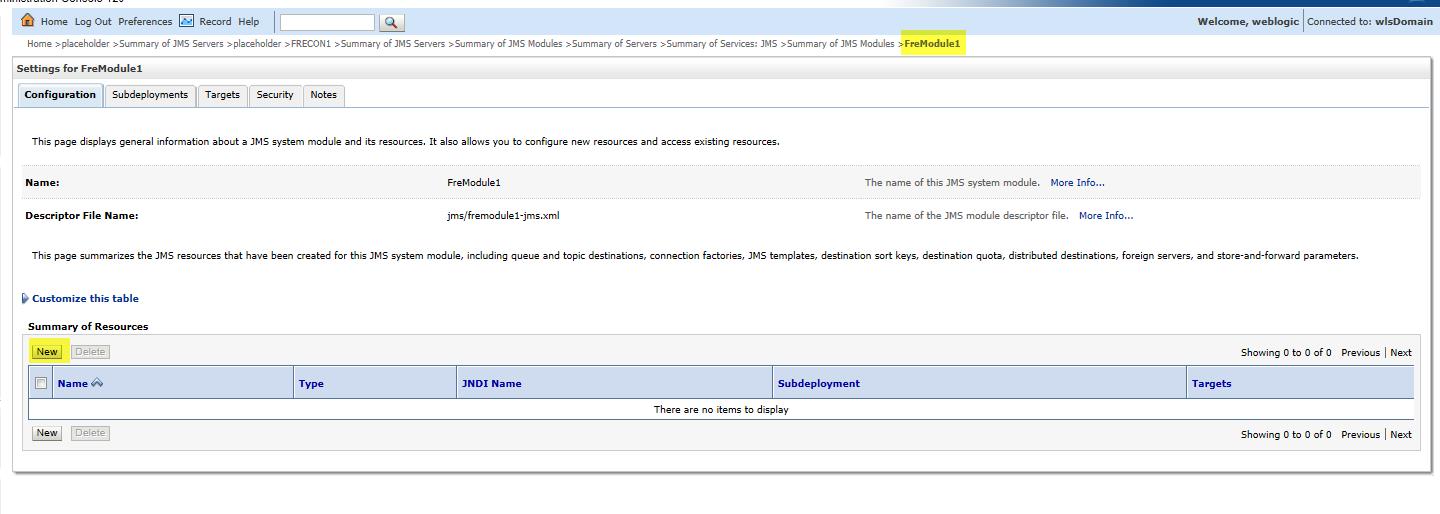
This program requires the JMS Module configurations

Configuration of JMS Module for MDB
Sample JMS Module configuration for different types of JMS destinations

We can use any kind of JMS destinations in the MDB program. Here in the sample program we are going to use the Queue, where we will refer to its JNDI name is jms.test.TestQ1.

Create a Message Driven Bean (MDB) 3.0


This sample is for Admins and WebLogic based developers. Now open a editor and write the following Java code:

package ejb30;
import javax.ejb.MessageDriven;
import javax.jms.JMSException;
import javax.jms.Message;
import javax.jms.MessageListener;
import javax.jms.TextMessage;
import javax.ejb.ActivationConfigProperty;

@MessageDriven(
activationConfig = {
@ActivationConfigProperty(propertyName = "destinationType", propertyValue = "javax.jms.Queue") ,
@ActivationConfigProperty(propertyName="connectionFactoryJndiName",propertyValue="jms.test.QCF"),
@ActivationConfigProperty(propertyName="destinationJndiName", propertyValue="jms.test.TestQ")
}
,mappedName="jms.test.TestQ"
)

public class MyMDB implements MessageListener
{
public void onMessage(Message message)
{
TextMessage textMessage = (TextMessage) message;
try {
System.out.println("nnt(mdb) MyMDB Received n"+ textMessage.getText());
}
catch (JMSException e)
{
e.printStackTrace();
}
}
}

Note: The ConnectionFactory, Queue JNDI names must match to your configured on the WebLogic admin console.

Compile the MDB Code

This is regular process of Java program compilation, -d option used to create the package directory, dot indicate current location path and a Java file.

javac -d . MyMDB.java

Generate MDB Jar

Now lets generate the artifact which we can deploy on WebLogic platform

jar   -cvf     mdb30.jar   ejb30     MyMDB.java

Deploying  MDB application on WebLogic

Goto your WebLogic admin console select deployments select install and select the path where the mdb30.jar file created. then do the deploy the artifact.

WebLogic Deployment for MDB
MDB Deployment on WebLogic Cluster


Running QueueSend

All set to go!! Execute the QueueSend program to send messages to the MDB, which is listening on the WebLogic cluster/server.

java jms.test.QueueSend t3://192.168.33.100:7011
 
QueueSend to MDB

MDB Listening

 tail -100f ms1.out
 

Finally you can see the received messages in the Managed server output log. That confirms JMS capabilities.

Thursday, 18 June 2015

Java Messaging Service Configuration (JMS Server, Module, CF, Queue, Topics)

Java Messaging Service


Java Messaging Service is an API which is part of J2EE. This Includes the following tree structure

1.JMS Server
2. JMS Module
3. Connection Factories
4. Queues, Distributed Queues.
5. Topics , Distributed Topics


1.JMS Server  Setup Using Admin Console :


Step 1: Login to your Weblogic Admin Console no matter which version you use.
WebLogic Admin Console Select Service->Messaging->JMS Server

Step 2: Click on the JMS Servers under Messaging in Services section. In the below picture the default WebLogic JMS servers are displayed. Click New to configure a new JMS server.

Lock and Edit and in the Right pane select 'New' button


Step 3 : Create New JMS Server


Create New JMS Server


Step 4: Mapping of the JMS server to one of the WebLogic server instance
Select persistence Store


Step 5: Select the created Persistence store for the JMS  server name JMSServer1


Step 5 : Activate the above changes .


Similarly you can Create JMS Servers with Cluster Option by choosing Cluster in the Target option.


2. JMS Module

Create a JMS module which holds the JMS system resources like queues, topics, connection factories etc.


Step1 : Click New.
Provide a name to the System module


Step2 : Select the WebLogic server instance where this JMS system module will be deployed.


Click on Finish


JMS System module successfully created.


3. Connection Factories

Configure a JMS Connection factory through Admin console


Step1 : Click on the New button to create them.


Step2 :Select Connection Factory resource
Step3 : Provide a name and JNDI name to the connection factory resource. This JNDI name will be used in the client code to talk to the connection factory object
Step 4 : Select the Target resource
Step5 : Connection factory resource will be created successfully and activated.
4. Queues, Distributed Queues.

Queues, Distributed Queues :  Point-to-Point Messaging


When there is JMS Client that sends a message through WebLogic JMS destination there would be each message has only one consumer at a time.

A sender and a receiver of a message have to be online on timing dependencies. The receiver can fetch the message at any point of time  

The receiver acknowledges the successful processing of a message.


Steps to Configure a Queue 

Step 1 :   Create a JMS Queue resource. Click New under the configuration tab as shown in the previous screenshot.


 Step 2 : Select the type of resource as Queue.


Step3 : Provide a Queue name and JNDI name to this new resource.


Step 4: Click on the "Create a New Subdeployment"

Give the Subdeployment  Name


Step 6: Select the Target JMS Server :


Step 7: Save the changes and activate.

Now lets experiment with sample QueueSend, QueueReceiver JMS client programs.


QueueSend.java

package jms.test;

import java.io.*;
import java.util.Hashtable;
import javax.jms.JMSException;
import javax.jms.Queue;
import javax.jms.QueueConnection;
import javax.jms.QueueConnectionFactory;
import javax.jms.QueueSender;
import javax.jms.QueueSession;
import javax.jms.Session;
import javax.jms.TextMessage;
import javax.naming.Context;
import javax.naming.InitialContext;
import javax.naming.NamingException;

public class QueueSend
{
 public final static String JNDI_FACTORY="weblogic.jndi.WLInitialContextFactory";
 public final static String JMS_FACTORY="jms.test.QCF";
 public final static String QUEUE="jms.test.TestQ";

 private QueueConnectionFactory qconFactory;
 private QueueConnection qcon;
 private QueueSession qsession;
 private QueueSender qsender;
 private Queue queue;
 private TextMessage msg;

 public void init(Context ctx, String queueName)
 throws NamingException, JMSException
 {
  qconFactory = (QueueConnectionFactory) ctx.lookup(JMS_FACTORY);
  qcon = qconFactory.createQueueConnection();
  qsession = qcon.createQueueSession(false, Session.AUTO_ACKNOWLEDGE);
  queue = (Queue) ctx.lookup(queueName);
  qsender = qsession.createSender(queue);
  msg = qsession.createTextMessage();
  qcon.start();
 }

 public void send(String message) throws JMSException {
  msg.setText(message);
  qsender.send(msg);
 }

 public void close() throws JMSException {
  qsender.close();
  qsession.close();
  qcon.close();
 }

 public static void main(String[] args) throws Exception {
  if (args.length != 1) {
   System.out.println("Usage: java QueueSend WebLogicURL");
   return;
  }
  InitialContext ic = getInitialContext(args[0]);
  QueueSend qs = new QueueSend();
  qs.init(ic, QUEUE);
  readAndSend(qs);
  qs.close();
 }

 private static void readAndSend(QueueSend qs) throws IOException, JMSException
 {
  String line="Test Message Body with counter = ";
  BufferedReader br=new BufferedReader(new InputStreamReader(System.in));
  boolean readFlag=true;
  System.out.println("\n\tStart Sending Messages (Enter QUIT to Stop):\n");
  while(readFlag)
  {
   System.out.print(" ");
   String msg=br.readLine();
   if(msg.equals("QUIT") || msg.equals("quit"))
   {
   qs.send(msg);
   System.exit(0);
   }
   qs.send(msg);
   System.out.println();
  }
  br.close();
 }

 private static InitialContext getInitialContext(String url) throws NamingException
 {
  Hashtable env= new Hashtable();
  env.put(Context.INITIAL_CONTEXT_FACTORY, JNDI_FACTORY);
  env.put(Context.PROVIDER_URL, url);
  return new InitialContext(env);
 }
}

QueueReceive.java

package jms.test;

import java.util.Hashtable;
import javax.jms.*;
import javax.naming.Context;
import javax.naming.InitialContext;
import javax.naming.NamingException;
public class QueueReceive implements MessageListener
{
 public final static String JNDI_FACTORY="weblogic.jndi.WLInitialContextFactory";
 public final static String JMS_FACTORY="jms.test.QCF";
 public final static String QUEUE="jms.test.TestQ";
 private QueueConnectionFactory qconFactory;
 private QueueConnection qcon;
 private QueueSession qsession;
 private QueueReceiver qreceiver;
 private Queue queue;
 private boolean quit = false;
 public void onMessage(Message msg)
 {
 try {
 String msgText;
 if (msg instanceof TextMessage) {
 msgText = ((TextMessage)msg).getText();
 }
  else
  {
 msgText = msg.toString();
 }
 System.out.println("Message Received: "+ msgText );
 if (msgText.equalsIgnoreCase("quit")) {
 synchronized(this) {
 quit = true;
 this.notifyAll(); // Notify main thread to quit
 }
 }
 } catch (JMSException jmse) {
 System.err.println("An exception occurred: "+jmse.getMessage());
 }
 }
 public void init(Context ctx, String queueName)
 throws NamingException, JMSException
 {
 qconFactory = (QueueConnectionFactory) ctx.lookup(JMS_FACTORY);
 qcon = qconFactory.createQueueConnection();
 qsession = qcon.createQueueSession(false, Session.AUTO_ACKNOWLEDGE);
 queue = (Queue) ctx.lookup(queueName);
 qreceiver = qsession.createReceiver(queue);
 qreceiver.setMessageListener(this);
 qcon.start();
 }
 public void close()throws JMSException
 {
 qreceiver.close();
 qsession.close();
 qcon.close();
 }
 public static void main(String[] args) throws Exception {
 if (args.length != 1) {
 System.out.println("Usage: java examples.jms.queue.QueueReceive WebLogicURL");
 return;
 }
 InitialContext ic = getInitialContext(args[0]);
 QueueReceive qr = new QueueReceive();
 qr.init(ic, QUEUE);
 System.out.println("JMS Ready To Receive Messages (To quit, send a \"quit\" message).");
  synchronized(qr) {
  while (! qr.quit) {
  try {
  qr.wait();
  } catch (InterruptedException ie) {}
  }
  }
  qr.close();
 }
 private static InitialContext getInitialContext(String url) throws NamingException
 {
  Hashtable env= new Hashtable();
  env.put(Context.INITIAL_CONTEXT_FACTORY, JNDI_FACTORY);
  env.put(Context.PROVIDER_URL, url);
  return new InitialContext(env);
 }
}

Step 8: Compile the above two java programs.
javac -d . Queue*.java

Step 9: Run the program
java jms.test.QueueSend t3://192.168.33.100:7011

java jms.test.QueueReceieve t3://192.168.33.100:7011

Sample QueueSend, QueueReceive execution to test Point-to-Point Messaging.


Note: In the program if you are unable to compile change the HashTable line...

        Hashtable<String,String> env= new Hashtable<String,String>();


WebLogic Books

  • Oracle WebLogic Server 12c: Administration Handbook
  • WebLogic Diagnostic Framework
  • Advanced WebLogic Server Automation
  • Oracle SOA Suite 11g Administrator's Handbook

Popular Posts